How to Reply to Google Reviews at Scale (3 Methods)
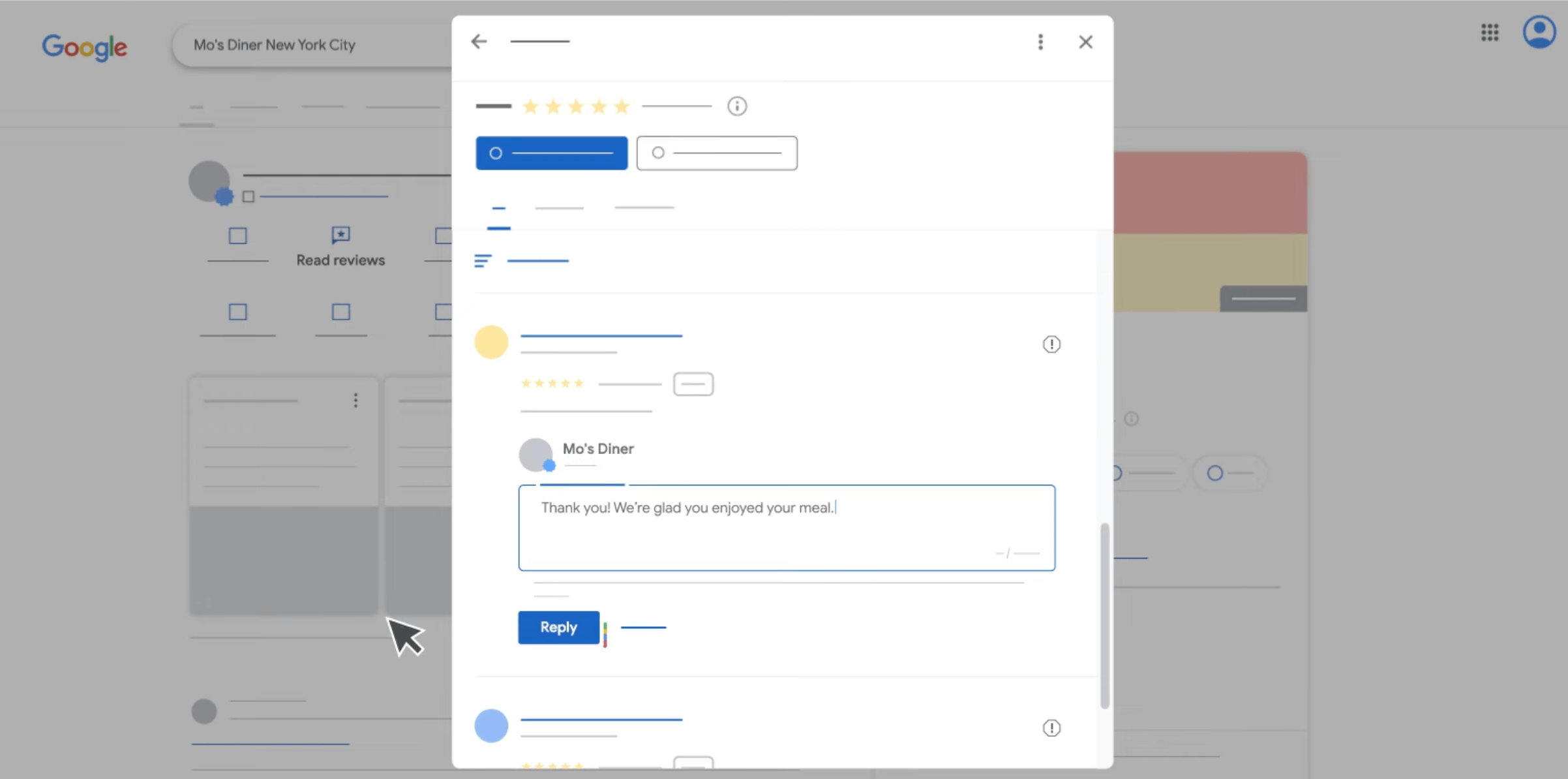
According to Google, businesses that respond to reviews see an average 0.7-star rating increase. That is massive — especially when you consider that 81% of people check Google reviews before visiting a business.
So replying to Google reviews is not optional. The question is how to do it efficiently when you are managing dozens of locations or hundreds of reviews per week.
If you have one location and a few reviews per month, the Google Business Profile dashboard works fine. But once you are managing 10+ locations or getting 50+ reviews per week, manual replies become a bottleneck.
This guide covers three ways to reply to Google reviews:
- Google Business Profile dashboard — best for single-location businesses
- Google Business Profile API — best for technical teams managing many locations
- ReviewHook API — best for teams managing reviews across multiple platforms
I will show the exact steps and code for each, plus when to use which. By the end, you will know how to reply to Google reviews and which method makes sense for you.
Method 1: Reply Manually via Google Business Profile Dashboard
This is the default method built into Google Business Profile. No setup, no API access required — you sign in, find the review, and reply. For single-location businesses getting only a handful of reviews per month, this approach is straightforward enough.
Step-by-step
- Go to your Business Profile.
- Select Read reviews.
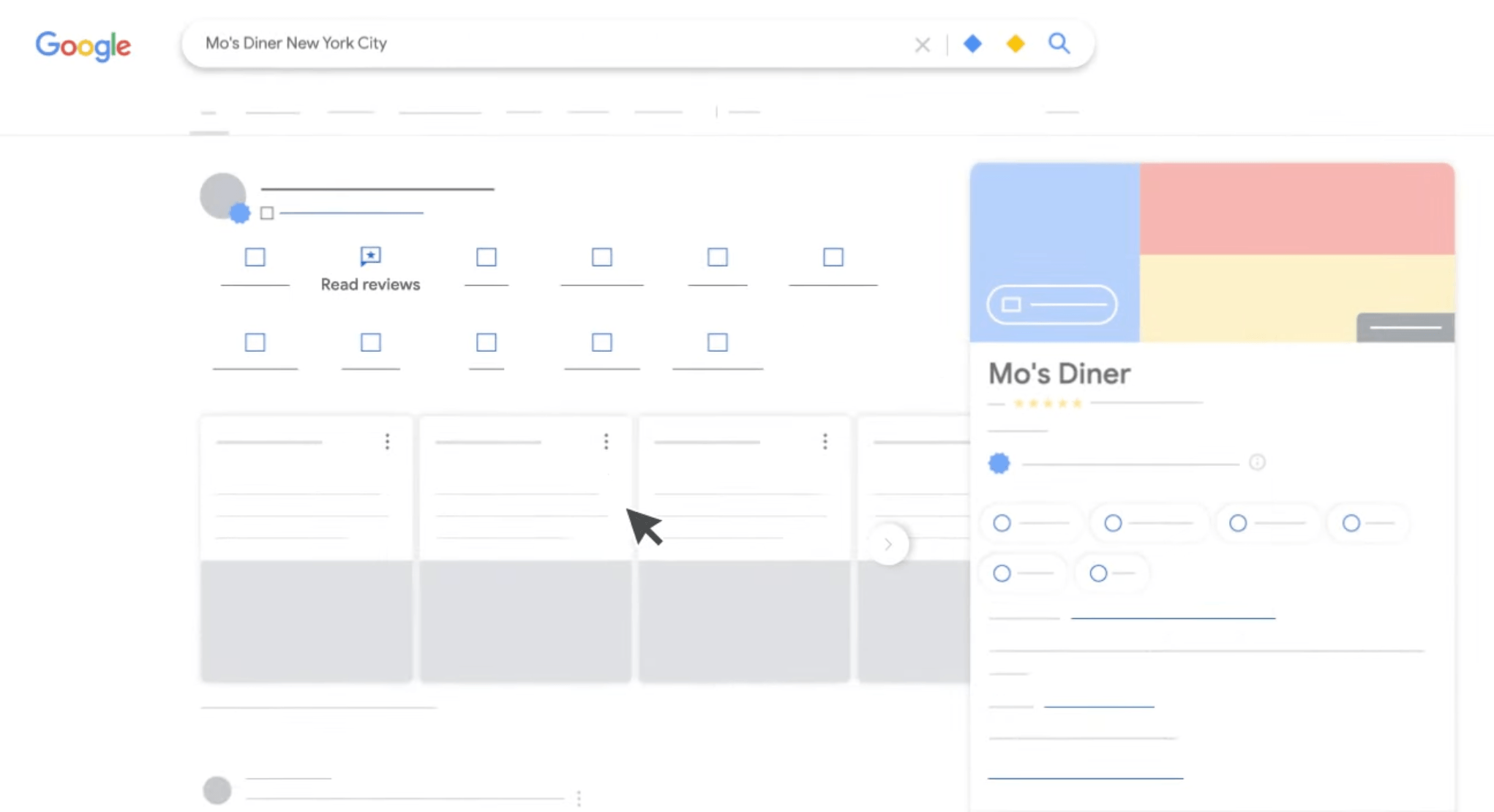
- Next to the review you want to reply to, select Reply.
- In the dialog box, enter your reply.
- Select Reply to publish your response.
The reply appears publicly under the original review after Google reviews it for content policy compliance — usually within 10 minutes, but occasionally up to 30 days. Your business name appears as the responder, not your personal name. The customer who left the review is also notified.
Method 2: Reply via the Google Business Profile API
The Google Business Profile API lets you fetch reviews and post replies programmatically, without using the dashboard. Technical teams managing many locations or building review features into their own products typically use this approach.
The trade-off: setup is non-trivial. You need API access approval, OAuth credentials, and a tolerance for Google's quirks.
Getting API access
Unlike most Google APIs, the Business Profile API is not open by default. You need to request access by submitting an application form to Google. The form asks about your use case, your company, and your expected API volume.
While you wait, you can prepare everything else: enable the API in your Google Cloud project, create OAuth credentials, and set up your authentication flow.
Setting up OAuth
The Business Profile API uses OAuth 2.0. You will need:
- A Google Cloud project
- The Business Profile API enabled in that project
- OAuth 2.0 credentials (Client ID and Secret)
- The required scope:
https://www.googleapis.com/auth/business.manage - A one-time OAuth handshake to get your initial tokens
The first time you set this up, you go through the standard OAuth 2.0 authorization code flow yourself: visit Google's consent screen, approve access to your own Business Profile, and exchange the returned code for an access_token and a refresh_token. Make sure to include access_type=offline in your authorization URL — without it, Google returns only the short-lived access_token, and your integration breaks the moment it expires. Google's web server OAuth guide walks through the full flow.
import { google } from 'googleapis';
import express from 'express';

const oauth2Client = new google.auth.OAuth2(
  process.env.GOOGLE_CLIENT_ID,
  process.env.GOOGLE_CLIENT_SECRET,
  'http://localhost:3000/oauth2callback', // redirect URI
);

const SCOPES = ['https://www.googleapis.com/auth/business.manage'];

const app = express();

// 1. Send the user to Google's consent screen.
app.get('/auth', (_req, res) => {
  const url = oauth2Client.generateAuthUrl({
    access_type: 'offline',  // required to get a refresh token
    prompt: 'consent',       // forces refresh-token issue on re-auth
    scope: SCOPES,
  });
  res.redirect(url);
});

// 2. Google redirects back with ?code=... — exchange it for tokens.
app.get('/oauth2callback', async (req, res) => {
  const { tokens } = await oauth2Client.getToken(req.query.code);
  // tokens.access_token   — 1 hour lifetime
  // tokens.refresh_token  — long-lived; only returned on the FIRST consent
  // Persist both. The refresh token is the one you'll need long-term.
  await saveTokens(tokens);
  res.send('Authorized.');
});
After the handshake, you will have an access_token (1 hour lifetime) and a refresh_token (long-lived). Save both somewhere persistent — environment variables work for a single business, a database for multi-account setups.
Refreshing the access token
The access_token expires after one hour. To get a new one, exchange the refresh_token against https://oauth2.googleapis.com/token. The googleapis client does this for you — call getAccessToken() and it returns a valid token, refreshing it under the hood when the cached one is close to expiry.
import { google } from 'googleapis';

const oauth2Client = new google.auth.OAuth2(
  process.env.GOOGLE_CLIENT_ID,
  process.env.GOOGLE_CLIENT_SECRET,
);

// Load the refresh_token you saved during the initial handshake.
oauth2Client.setCredentials({ refresh_token: process.env.GOOGLE_REFRESH_TOKEN });

// Fires whenever the client refreshes a token. Persist the new access_token
// (and expiry_date) so other processes can pick it up without re-refreshing.
oauth2Client.on('tokens', (tokens) => {
  if (tokens.access_token) {
    saveAccessToken(tokens.access_token, tokens.expiry_date);
  }
});

// Returns a valid access_token — refreshes silently if the cached one is
// expired or within ~5 minutes of expiry.
const { token } = await oauth2Client.getAccessToken();
console.log(token);
Finding your account and location IDs
Before you can call any review endpoint, you need two things: your account ID and the location ID of the business you want to manage.
1. Get your account ID
Call the Account Management API:
import { google } from 'googleapis';

const mybusiness = google.mybusinessaccountmanagement({
  version: 'v1',
  auth: oauth2Client,
});

async function getAccounts() {
  const { data } = await mybusiness.accounts.list();
  return data.accounts;
}
The response looks like:
{
  "accounts": [
    {
      "name": "accounts/106861923828423488976",
      "accountName": "Your Business Name",
      "type": "PERSONAL"
    }
  ]
}
The string after accounts/ is your account ID. In the example above: 106861923828423488976. Most users only have one account. If you manage multiple, pick the one you are targeting.
2. Get your location IDs
Once you have the account ID, fetch the locations under it. This call uses a different API (mybusinessbusinessinformation) and requires you to specify which fields you want via the readMask parameter:
import { google } from 'googleapis';

const businessInfo = google.mybusinessbusinessinformation({
  version: 'v1',
  auth: oauth2Client,
});

async function getLocations(accountId) {
  const { data } = await businessInfo.accounts.locations.list({
    parent: `accounts/${accountId}`,
    readMask: 'name,title,storefrontAddress',
  });
  return data.locations;
}
The response:
{
  "locations": [
    {
      "name": "locations/1234567890123456789",
      "title": "Your Business Name",
      "storefrontAddress": {
        "addressLines": ["123 Main St"],
        "locality": "San Francisco",
        "administrativeArea": "CA",
        "postalCode": "94102"
      }
    }
  ]
}
The string after locations/ is your location ID.
Fetching and replying to reviews
Once the OAuth and IDs are in place, the rest is just two endpoints:
- List reviews:
GET https://mybusiness.googleapis.com/v4/accounts/{accountId}/locations/{locationId}/reviews - Reply to a review:
PUT https://mybusiness.googleapis.com/v4/accounts/{accountId}/locations/{locationId}/reviews/{reviewId}/reply
If you manage multiple locations, expect to write some pagination logic.
Fetching reviews
async function getReviews({
  accountId,
  locationId,
  pageSize = 50,
  pageToken,
}) {
  // v4 is not in the typed @googleapis/* clients, so we drop to a raw HTTP
  // call. Using oauth2Client.request() (instead of axios + a manual Bearer
  // header) means the client adds the Authorization header for us and
  // refreshes the access_token silently when the cached one is near expiry.
  const { data } = await oauth2Client.request({
    url: `https://mybusiness.googleapis.com/v4/accounts/${accountId}/locations/${locationId}/reviews`,
    params: {
      pageSize,
      ...(pageToken && { pageToken }),
    },
  });

  return data;
}
A successful response looks like:
{
  "reviews": [
    {
      "name": "accounts/106861923828423488976/locations/1234567890123456789/reviews/AbFvOqkJ...",
      "reviewId": "AbFvOqkJ...",
      "reviewer": { "displayName": "Sarah Chen" },
      "starRating": "FIVE",
      "comment": "Great service, very helpful staff!",
      "createTime": "2026-04-14T09:23:00Z",
      "updateTime": "2026-04-14T09:23:00Z"
    }
  ],
  "averageRating": 4.5,
  "totalReviewCount": 142,
  "nextPageToken": "..."
}
A few things to note:
starRatingis a string enum, not a number. Values areONE,TWO,THREE,FOUR,FIVE. Map these to integers in your own code.commentcan be missing. Reviews with only a star rating and no text are valid. Handle theundefinedcase.reviewReplyis only present if you have already replied. Use it to filter unanswered reviews.- Pagination uses
nextPageToken. When present, pass it back in your next call to get the next page.
Replying to a review
async function replyToReview({ accountId, locationId, reviewId, comment }) {
  const { data } = await oauth2Client.request({
    method: 'PUT',
    url: `https://mybusiness.googleapis.com/v4/accounts/${accountId}/locations/${locationId}/reviews/${reviewId}/reply`,
    data: { comment },
  });

  return data;
}When this method makes sense
The Google Business Profile API works well when:
- You are managing reviews for a single business (or a small fixed set you control)
- You have engineering capacity to maintain the OAuth flow and handle refresh tokens
- You only need Google reviews — not App Store, Play Store, or other platforms
- You are willing to wait for API approval before starting development
If you need to manage reviews across multiple platforms, or want to skip the OAuth and approval complexity, the next method is faster.
Method 3: Reply via the ReviewHook API
Method 2 works, but it is a lot of setup for what is ultimately a simple operation: fetch reviews, post replies. ReviewHook is built to remove that setup.
It is a single REST API for managing reviews across every major platform — Google Business Profile, app stores, software marketplaces, and more. Same endpoints, same response shape, same auth, regardless of platform.
Getting started
Three steps, no OAuth code to write:
- Sign up at reviewhook.dev and verify your email.
- Connect your Google account from the ReviewHook dashboard. You authorize once through a click-through flow — ReviewHook handles the OAuth handshake, token storage, and refresh logic for you.
- Grab your API key from the dashboard and start making calls.
That is the entire setup. No Google Cloud project, no API access approval wait, no refresh token logic to maintain.
Fetching and replying
# Fetch reviews across platforms
curl https://api.reviewhook.dev/reviews \
  -H "api-key: rev_live..." \
  -G \
  -d "platform=google_business"

# Reply to a review
curl -X POST https://api.reviewhook.dev/reviews/84721../reply \
  -H "api-key: rev_live..." \
  -d text="Thanks for your feedback. Fixed in v2.3!"
That is the whole flow. No OAuth refresh, no chasing account and location IDs — your API key handles auth, and the connection you set up earlier handles the platform mapping. For the full list of filters, response fields, and platform-specific options, see the Docs.
Direct API vs ReviewHook at a glance
| Google Business Profile API directly | ReviewHook | |
|---|---|---|
| Initial dev time | High. Days to weeks reading docs, waiting for API approval, building OAuth flow. | Low. Hours to integrate a single standardized schema. |
| Maintenance | Ongoing. You handle every Google API change, deprecation, and OAuth quirk. | None on your side. ReviewHook handles upstream changes and versioning. |
| Authentication | Complex. You manage OAuth flows, refresh tokens, and credentials. | Simplified. Connect once through the dashboard, use an API key. |
| Multi-platform support | Google only. Adding App Store, Play Store, or G2 means writing separate integrations. | Built in. Add a new platform with one parameter change. |
| Multi-location handling | Manual. You iterate through accounts → locations → reviews yourself. | Handled. Query multiple locations together or individually through one endpoint. |
| Data format | Platform-specific. Google's response shape only. | Normalized. Same JSON schema regardless of platform. |
| Feature depth | Full. Access to every Google-specific field and edge case. | Standardized. Limited to fields supported by the unified schema. |
| Rate limits | Strict. Google's quotas apply directly to your app. | Pooled. ReviewHook handles rate limiting and retries internally. |
| API approval | Required. Days to weeks of waiting for Google to approve your access. | Not required. Sign up and start in minutes. |
| Best for | Single business, Google-only, full feature access, willing to maintain. | Small teams, multi-platform, multi-location, want to ship fast. |
When this makes sense
ReviewHook is the easier path when:
- You are managing reviews across multiple platforms, not just Google
- You are managing multiple locations and want to query them together or individually without writing your own loop logic
- You do not want to maintain OAuth flows and token refresh logic
- You are a small team and engineering time is limited
- You want to ship review automation in an afternoon, not a sprint
What it costs
ReviewHook is in beta and free for early users. When paid plans launch, the first 100 beta users get 3 months free on any plan.
Best Practices for Replying to Google Reviews
Whichever method you choose, the same principles apply to writing replies that actually help. Reviews are public, your replies are too, and future customers read both before deciding to trust your business.
Reply to every review, not just the negative ones
It is tempting to focus on negative reviews — they feel urgent. But replying to positive reviews matters just as much. It signals to future customers that you are engaged, and it builds goodwill with the people who took time to leave a kind word.
A short "Thanks for the kind review, Sarah" beats silence every time.
Personalize when you can
Generic replies are worse than no reply. "Thank you for your feedback" copy-pasted under every review reads as a bot, and customers notice.
Keep replies short and warm
Most replies should be 2-3 sentences. Long replies look defensive on negative reviews and overeager on positive ones. Match the energy of the original review — short reviews get short replies.
Handle negative reviews professionally
Negative reviews are public conversations, and how you respond matters more than what the customer originally wrote. A few rules:
- Acknowledge the issue. Do not dismiss or argue.
- Do not get defensive. Future customers are watching.
- Apologize if appropriate, even if you think the customer is wrong.
- Move complex resolutions offline. Offer to continue the conversation by email or phone.
- Never share private information about the customer in your reply.
Reply quickly
Stay within Google's content policies
Replies that violate Google's policies do not get posted. Common reasons replies are rejected:
- Sharing personally identifiable information about the reviewer
- Promotional or off-topic content
- Hostile or inflammatory language
- Linking to unrelated websites
If you are using the API or ReviewHook, the same content rules apply. Your replies still go through Google's review queue.
Frequently asked
No. You need verified ownership of the Google Business Profile to post replies that appear under the business name. If you are managing reviews on behalf of a client, the business owner needs to add you as a manager on their Business Profile.
Google reviews every reply for content policy compliance before publishing. This usually takes up to 10 minutes, but in some cases it can take up to 30 days. Your reply is not lost during that time — it is queued for review.
The Google Business Profile API accepts replies up to 4,096 characters. The dashboard accepts the same limit. In practice, replies under 300 characters work best — readability matters more than length.
Yes. In the dashboard, find the reply and click Edit or Delete. Through the API, the same PUT endpoint that creates a reply also updates it — send a new request with updated content. To delete, send a DELETE request to the same URL.
The Google Business Profile API is not open to all developers by default. Google requires an application form covering your use case, company, and expected volume. Approval can take days to weeks. There is no way to skip the wait if you want direct API access.
Not through the dashboard — it only handles one review at a time. Through the Google Business Profile API or ReviewHook, you can write logic that fetches multiple reviews and posts replies in sequence. Just respect rate limits.
Yes. Google sends an email to the reviewer when your reply is approved and published. The customer can also edit their review after reading your reply, which updates the review timestamp.
They are the same product, renamed. Google rebranded "Google My Business" to "Google Business Profile" in late 2021. The API still uses some legacy endpoints with mybusiness in the URL, but Google's official terminology is now Business Profile. Treat any reference to "Google My Business API" as the current Business Profile API.